All guides
GuidesKeeping in step
Settings, updates and reports
Start with Windows, how often Tally is checked, adding and removing companies, automatic updates, and what a crash report contains.
3 minute read
Where the settings are
Extolly has few settings, and they are all in one place.
- In the dashboard, open Tally connection: at the foot of the rail on a wide screen, or in the menu at the top right.
- Press the settings button at the top right of that screen.
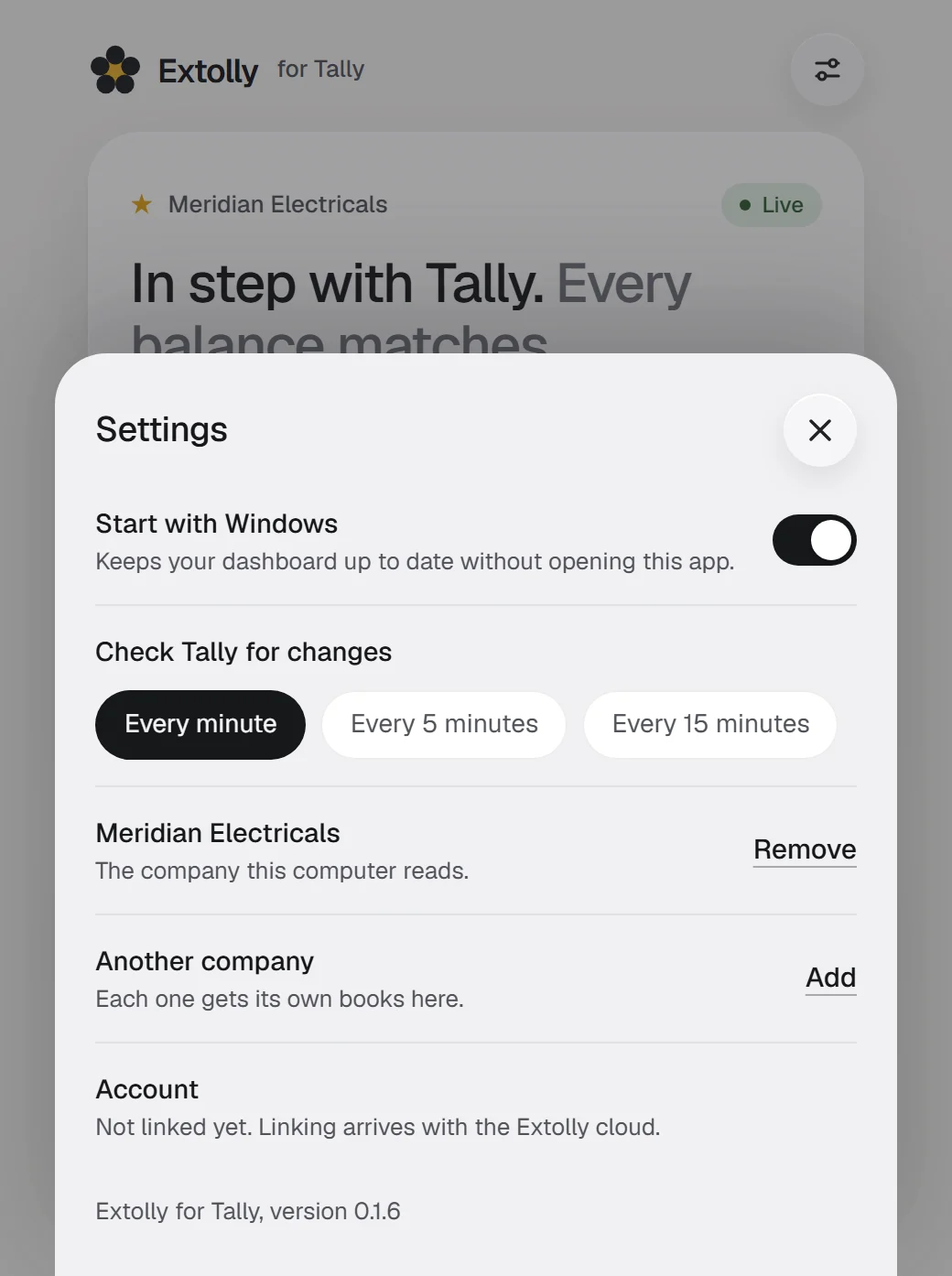
The settings
| Setting | What it does |
|---|---|
| Start with Windows | Starts Extolly when you sign in to Windows, beside the clock, so your dashboard is up to date without opening the app. On by default |
| Check Tally for changes | Every minute, Every 5 minutes or Every 15 minutes |
| The company's name, with Remove | Stops reading that company and removes its copy from this computer. Nothing in Tally is touched |
| Another company, with Add | Reads another company that is open in Tally |
| Account | Says Not linked yet. Linking arrives with Extolly cloud |
| Update automatically | New versions install by themselves. Shown once updates are switched on in a release |
| Send crash reports | Sends notes of faults in the app so they can be fixed. Shown once reporting is switched on in a release |
| Something not right? | Send a report by hand, with the recent activity log |
The version you are running is at the bottom of the sheet, and under the status screen.
How often to check Tally
Every minute suits almost everyone: a check that finds nothing new costs Tally very little. Choose a longer gap if Tally runs on a slow computer or holds a very large company and you notice it pause.
Whatever you choose, Extolly spaces its checks out by itself when Tally is slow to answer, and you can always check at once with Check now.
Updates
Once updates are switched on in a release, this is how they will behave:
- Extolly looks for a newer version soon after it starts, and every four hours.
- It downloads the new version in the background and checks it against a published checksum before using it.
- If the window is closed and nothing is being read or sent, it installs by itself and comes back beside the clock.
- If the window is open, the status screen says Version ... is ready with a Restart to update button. The same choice is on the icon beside the clock.
- Switch Update automatically off to stop this. You can still update by hand.
Extolly will not restart to update while it is reading from Tally or sending a bill.
Crash reports
If part of the app fails, Extolly writes a short note so the fault can be found and fixed.
What a note holds: the app's version, the kind of fault, the error message, where in the program it happened, and which screen was open.
What it never holds: your figures, your entries, party names, or anything else from your books. The name of your Windows account is removed from any file path.
In the current version these notes are kept on your computer and are not sent anywhere. Once reporting is switched on in a release, they are sent only while Send crash reports is on, and you can switch it off.
Send a report sends one by hand, with the last 200 lines of the app's activity log, which records when checks ran and what went wrong, not what is in your books.
Settings in the dashboard
The dashboard itself has little to set:
- The period is chosen with the period picker and remembered on that computer.
- Which cards Sales, Money and Stock show is set with Customise. See Sales, Money and Stock.
- Regular or proforma for a new bill starts on whichever you chose last.
Still stuck? Write to support@extolly.com and say which step you are on.