All guides
GuidesBilling
Record a payment
Money a customer paid you, or money you paid a supplier, and how Extolly decides which bills it settles.
3 minute read
A payment received
- Press New, then Payment received. Or open a customer, or an unpaid sales bill, and press Record payment.
- Under Received from, search for the customer and press their name.
- Enter the Amount received.
- Under Received in, press the cash or bank account the money went into.
- Change the Date or add a Note if you need to.
- Press Send to Tally.
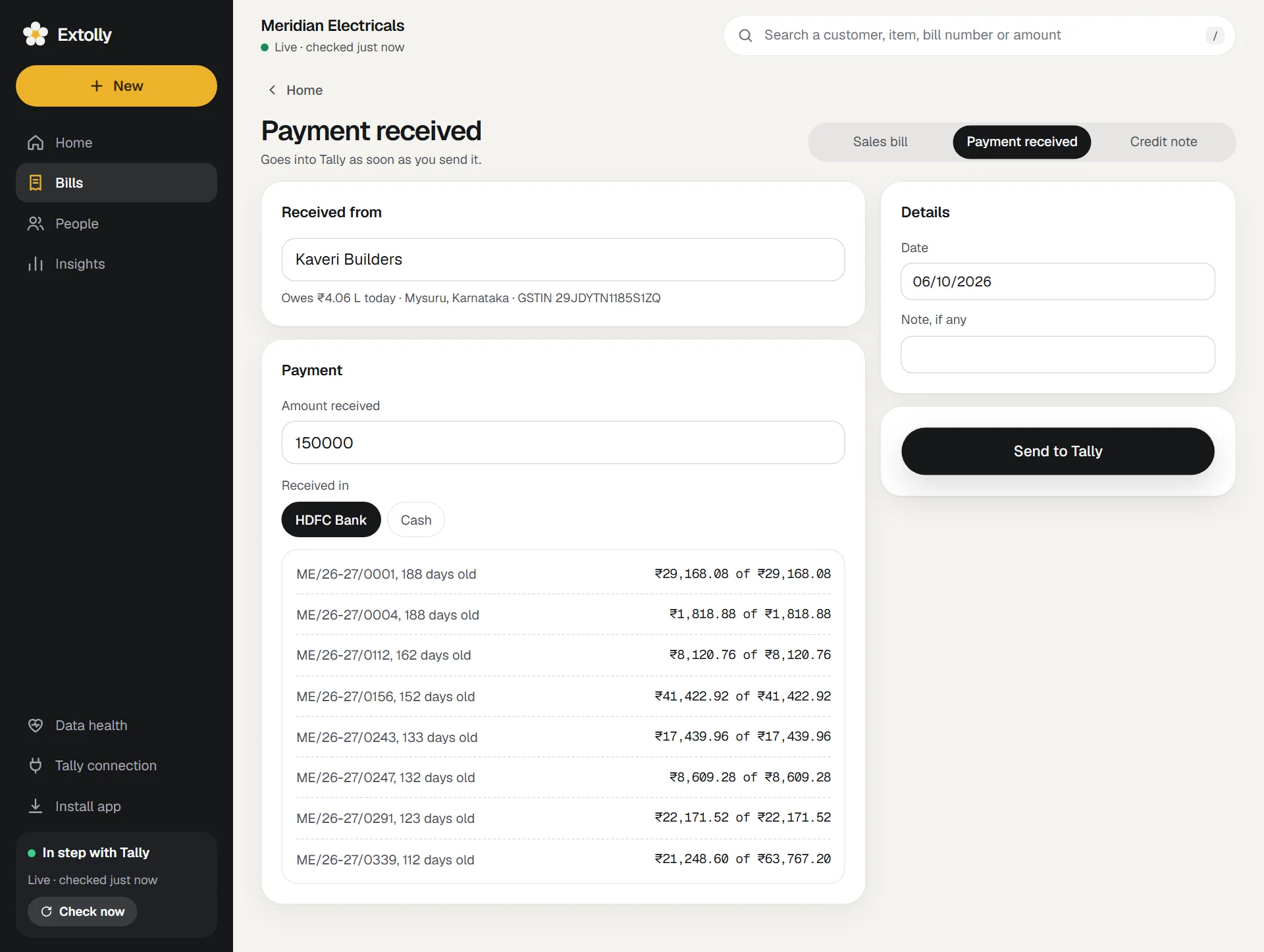
It goes into Tally as a receipt.
Which bills it settles
As you type the amount, Extolly shows what the payment will settle: each bill, how old it is, and how much of it is covered.
- A payment always goes against the customer's oldest unpaid bills first.
- If the amount is more than they owe, the rest is shown as Kept on account.
- If nothing is unpaid, the whole amount is kept on account.
A payment made
The same, for a supplier.
- Press New, then Payment made. Or open a supplier and press Record payment.
- Choose the supplier under Paid to, enter the Amount paid, and choose the account under Paid from.
- Press Send to Tally.
It goes against the supplier's oldest bills first, and into Tally as a payment.
Payment taken with a bill
If the customer pays when you bill them, you do not need a separate step. On the sales bill, open More options and switch on Payment received now. See Make a sales bill. On a purchase bill the same option is called Paid now.
Good to know
- The customer or supplier must already be in Tally. To add one, use New, then Customer or Supplier, or add them while writing a bill.
- A payment cannot be saved as a draft. If Tally is closed, it is saved and goes in when Tally opens.
- A receipt or payment that is already in Tally cannot be edited from Extolly. Cancel or delete it and record it again. See Change, cancel or delete an entry.
Money that is not for a bill
Money received that is not from a customer for a sale, such as interest or a refund, is an Expense or other entry with Money received chosen. See Purchases, expenses and other entries.
Still stuck? Write to support@extolly.com and say which step you are on.