All guides
GuidesStart here
Find your way around
The four places, the New button, the period picker, search, and the status line under your company's name.
4 minute read
Four places and one button
Everything in Extolly is in one of four places.
| Place | Opens | Inside it |
|---|---|---|
| Home | The day's summary | |
| Bills | Every entry in your books | |
| People | Customers | Customers, Suppliers |
| Insights | Sales | Sales, Money, Stock, GST, Reports, Segments, Repeat buyers |
On a wide screen these are in the dark rail on the left, with a yellow New button above them. On a narrow window or a phone they are in a bar along the bottom, with a round + button in the middle.
The New button
New is the one place to start anything. It opens a sheet headed New, with the line "It goes into Tally as soon as you send it."
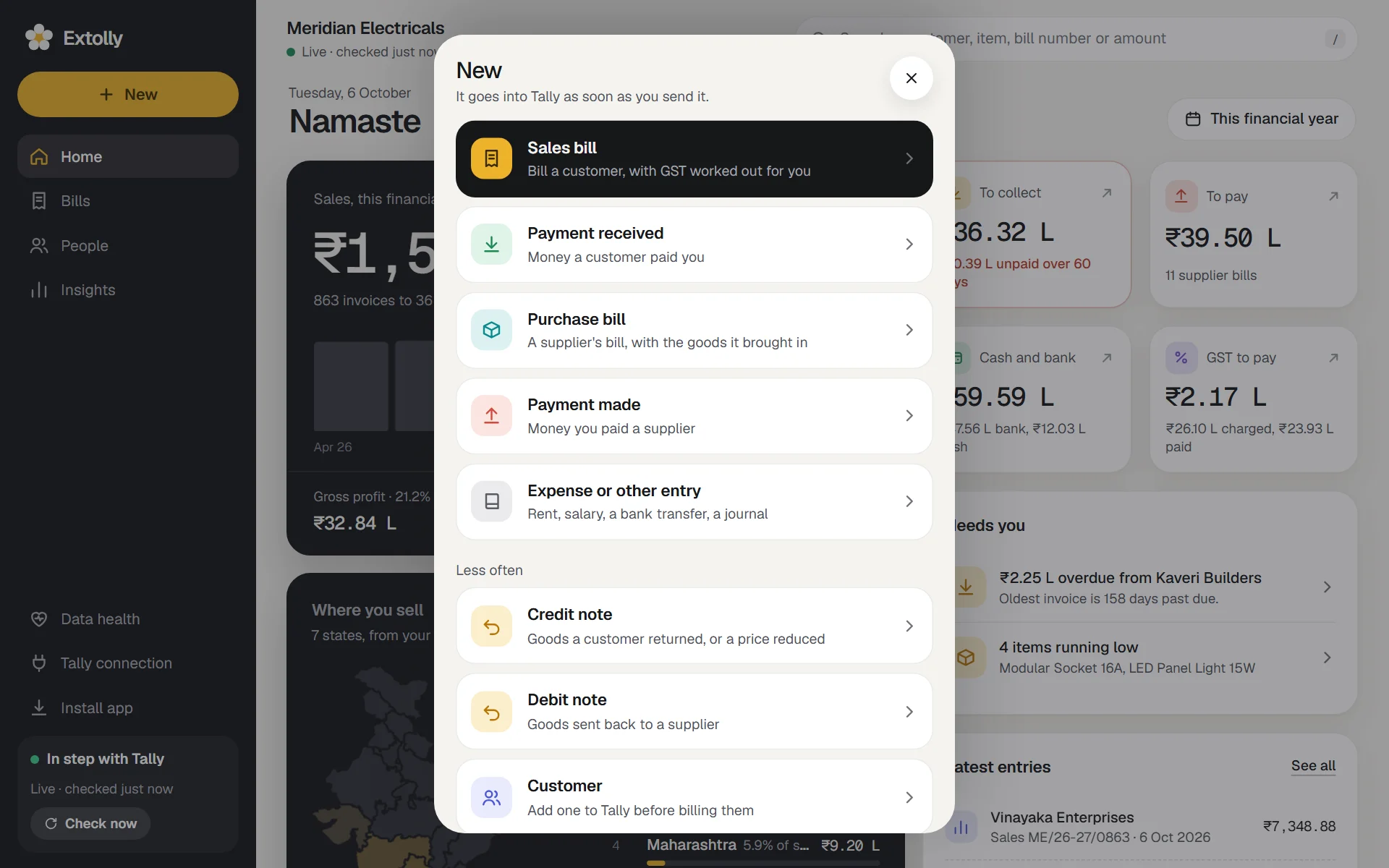
| Choice | For |
|---|---|
| Sales bill | Bill a customer, with GST worked out for you |
| Payment received | Money a customer paid you |
| Purchase bill | A supplier's bill, with the goods it brought in |
| Payment made | Money you paid a supplier |
| Expense or other entry | Rent, salary, a bank transfer, a journal |
Under Less often: Credit note, Debit note, Customer, Supplier and Report.
The period picker
Most screens show figures for a period. The pill with a calendar on it, near the top right of the screen, says which. Press it to change.
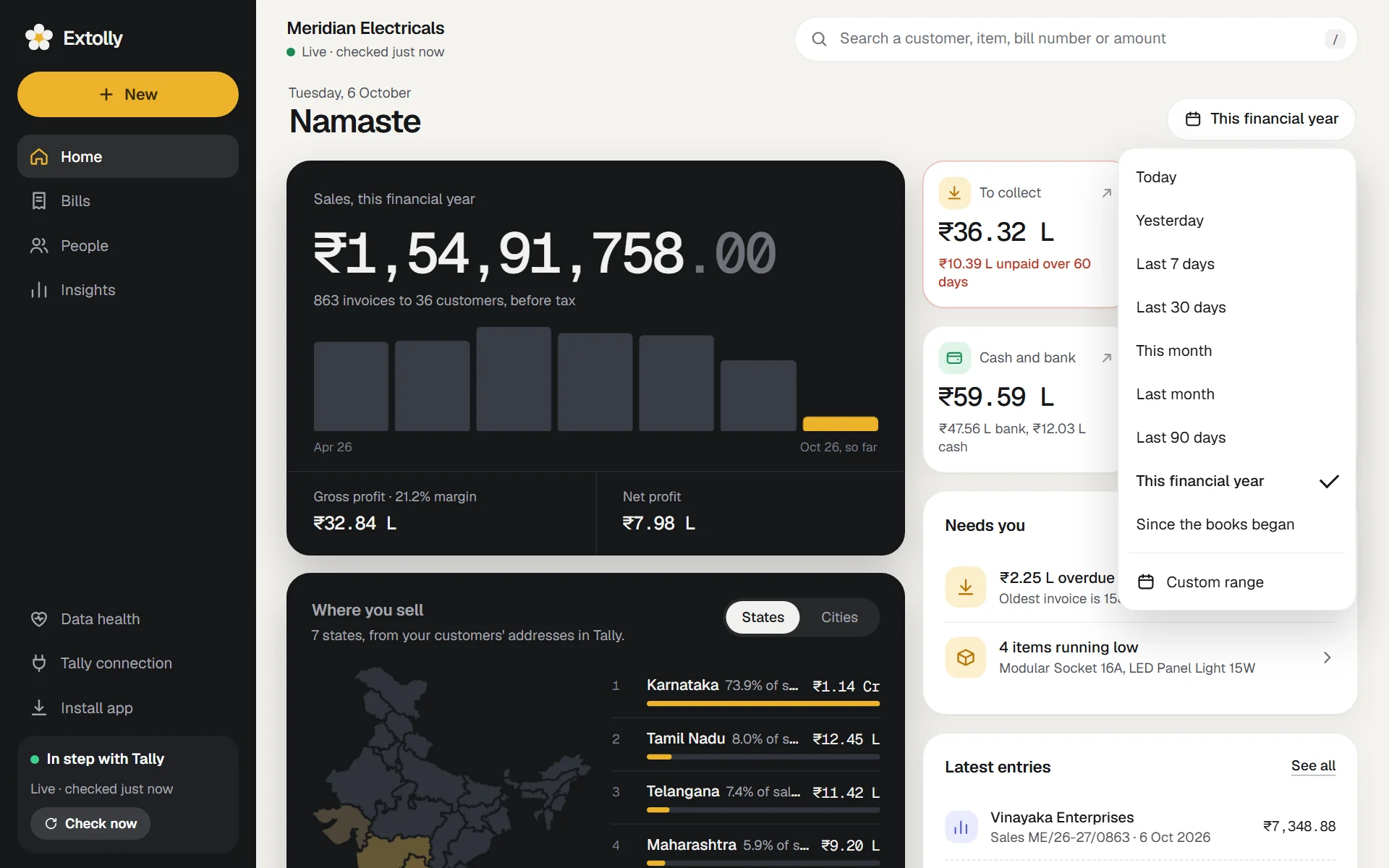
The choices are Today, Yesterday, Last 7 days, Last 30 days, This month, Last month, Last 90 days, This financial year, Since the books began and Custom range.
- It starts on This financial year. The year begins in the month Tally says your company's year begins.
- One choice applies to every screen, and is remembered on that computer.
- If the dates you pick hold nothing, Extolly says so and offers a period that does, rather than showing a page of zeros.
Some figures are always as of today, whatever the period: what customers owe, what you owe, cash and bank, and stock.
Search
Press the search box at the top, or the / key, or Ctrl K.
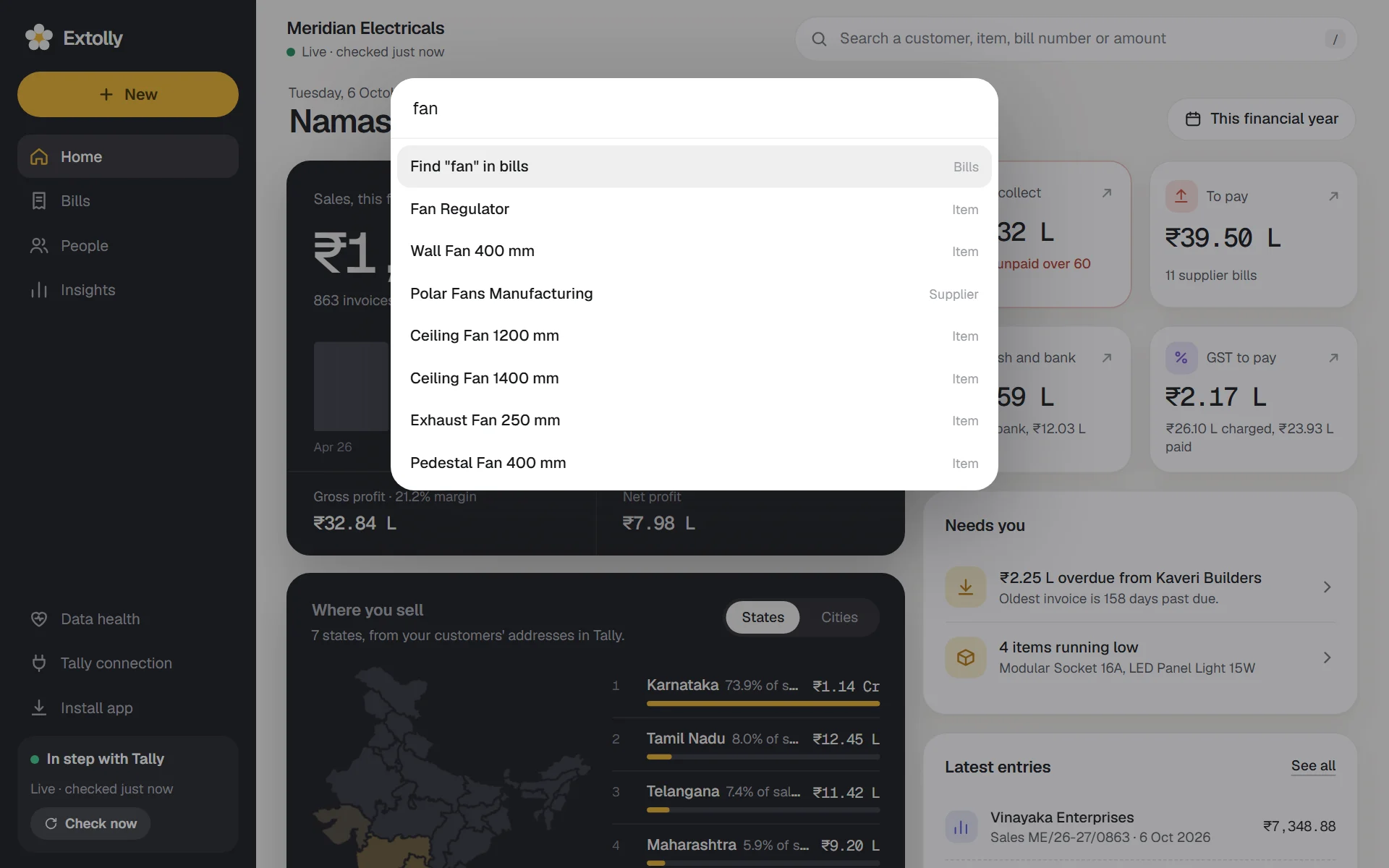
Type a customer, supplier, item, bill number or amount. Results say what kind of thing each is: Customer, Supplier, Item, Report, Segment, Screen or Create. The first result, Find "..." in bills, searches every entry for what you typed: by party, number, reference, narration or exact amount.
Use the arrow keys to move, Enter to open, Esc to close.
The status line
Under your company's name at the top there is always one line saying how fresh the figures are, with a coloured dot.
- Green: Live · checked just now
- Amber: Tally closed · as of 3:42 pm, or a bill is waiting for Tally
- Red: something needs you, such as 1 bill refused by Tally or Figures differ from Tally
When the line is amber or red, a strip under the top bar explains it and offers a button. How syncing works lists every status and what to do.
The menu
The three-line button at the top right opens a sheet with:
- Check Tally now: read anything new from your books
- Data health: gaps in Tally that leave reports incomplete
- Add another company or Change company
- Add to your home screen
- Tally connection: the computer that reads your Tally
On a wide screen, Data health, Tally connection and Install app are also at the foot of the rail, above a Check now button.
Opening the detail behind a figure
Almost everything can be pressed. A tile on Home opens the screen behind it. A row in a list opens the entry, the customer or the item. From a screen opened this way, the link at the top left takes you back to where you came from.
Still stuck? Write to support@extolly.com and say which step you are on.