All guides
GuidesYour books
Segments
Groups of customers or products that match conditions you set, such as customers who owe money for over 60 days, kept up to date by themselves.
4 minute read
What a segment is
A segment is a list of customers, or of products, that match conditions you choose. "Customers who have not been billed for 45 days." "Products with stock that is not selling." You set the conditions once. The list works itself out afresh every time you open it, so it is always current.
Under Insights, Segments shows Your segments and the Ready-made ones.
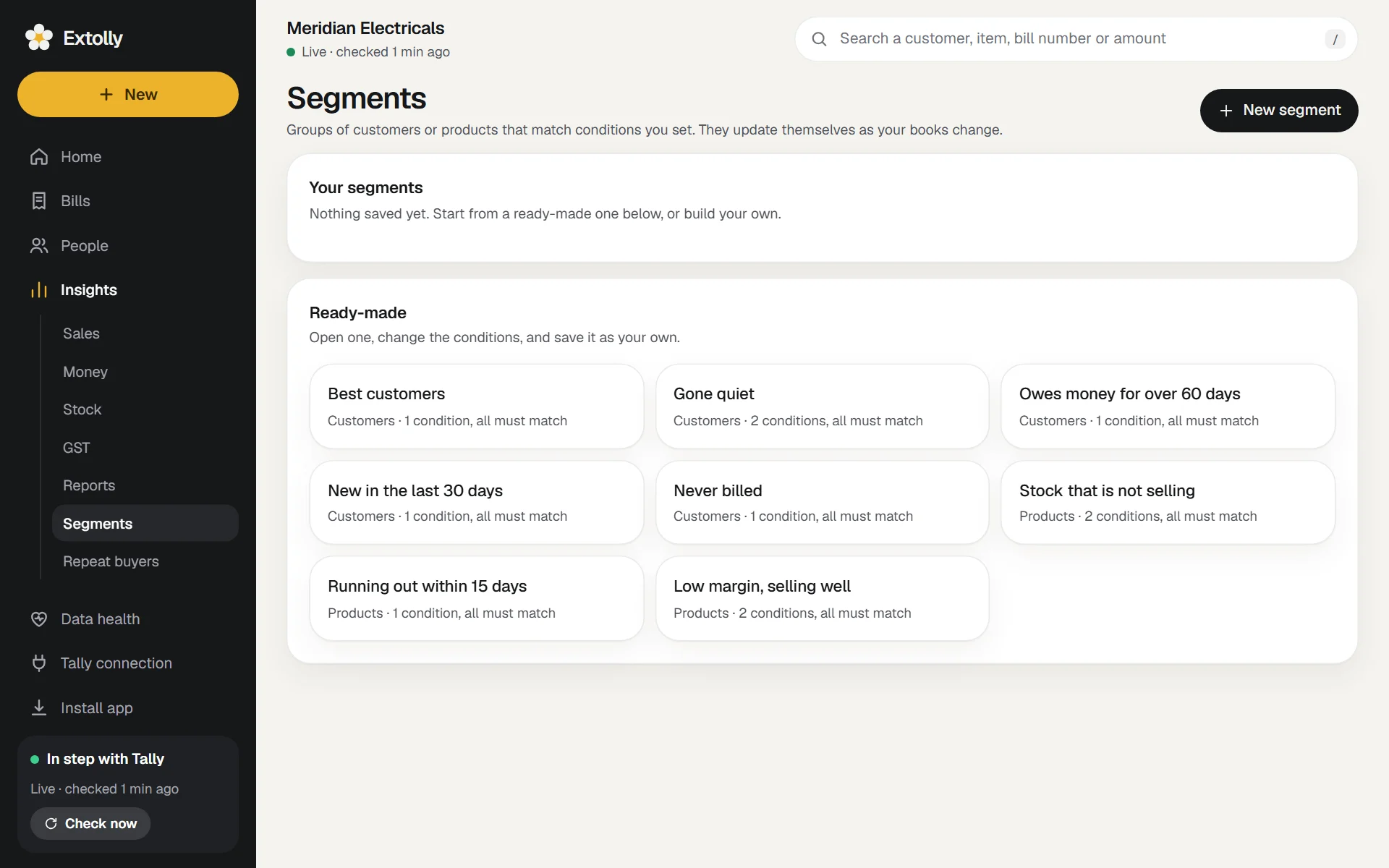
Ready-made segments
| Segment | Of | Matches |
|---|---|---|
| Best customers | Customers | Sales in the last 90 days of at least ₹2,00,000 |
| Gone quiet | Customers | More than 45 days since the last invoice |
| Owes money for over 60 days | Customers | Anything unpaid for over 60 days |
| New in the last 30 days | Customers | First invoice within the last 30 days |
| Never billed | Customers | In Tally, but never invoiced |
| Stock that is not selling | Products | In stock, with nothing sold in the last 90 days |
| Running out within 15 days | Products | Less than 15 days of stock left |
| Low margin, selling well | Products | Margin under 28% and sales over ₹1,00,000 in the last 90 days |
Open one, change the conditions to suit your business, and save it as your own.
Read a segment
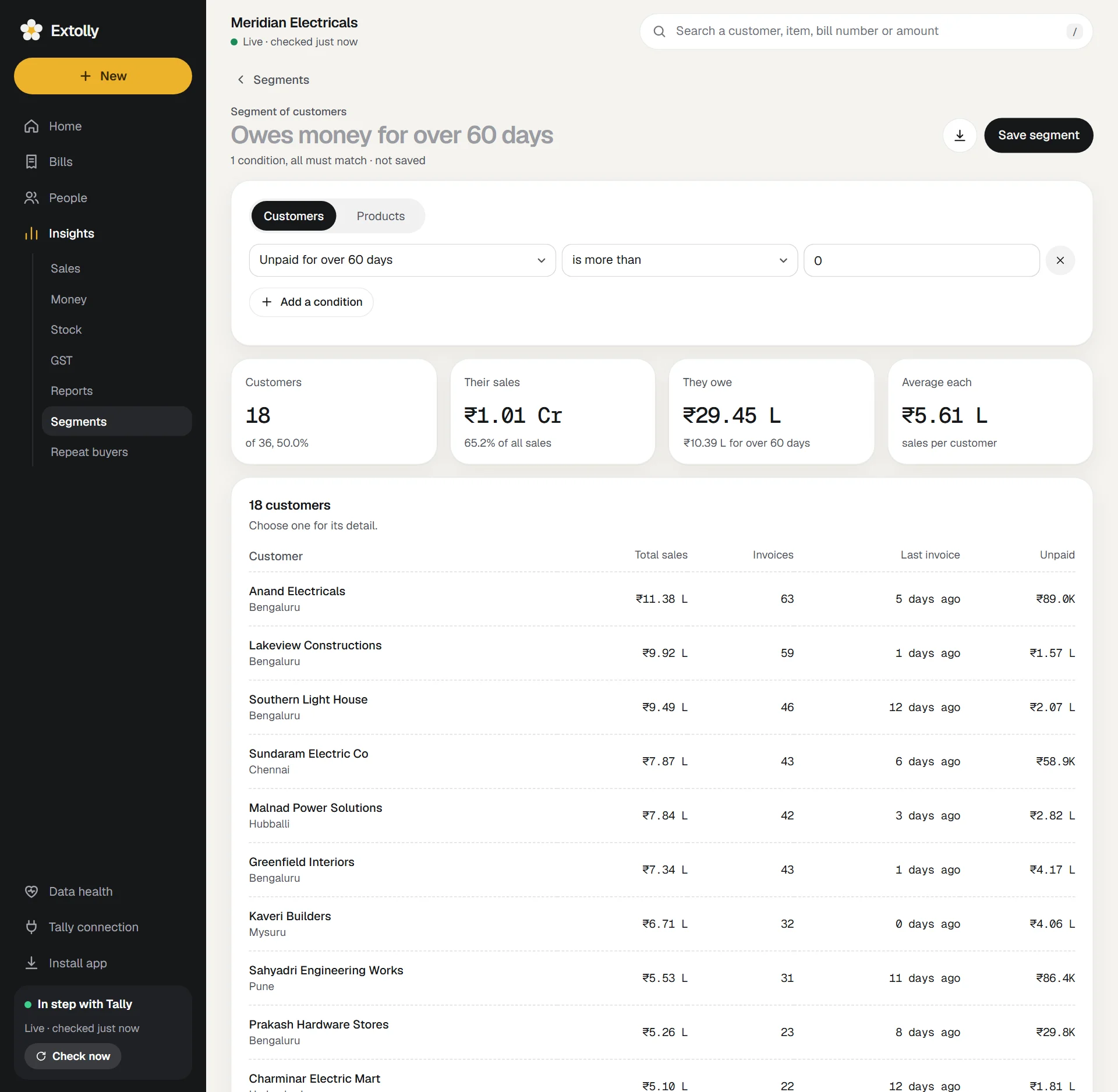
- Four figures. For customers: how many match and what share of all customers that is, their sales, what they owe, and average sales each. For products: how many, their sales, stock held, and average sales each.
- The list, largest sales first. Press a row for that customer's or product's detail.
Build your own
- Press New segment.
- Choose Customers or Products.
- Press Add a condition. Each condition has three parts: what to look at, how to compare, and a value.
- With two or more conditions, choose Match all or Match any.
- Press the title, type a name, and press Save segment.
The list updates as you change the conditions.
What a customer condition can look at
Total sales, Sales in the last 90 days, Number of invoices, Average invoice, Days since last invoice, Days since first invoice, Unpaid amount, Unpaid for over 60 days, Age of oldest unpaid invoice, City, State, Customer group, Products bought and Categories bought.
What a product condition can look at
Total sales, Sales in the last 90 days, Quantity sold in the last 90 days, Margin, percent, Quantity in stock, Stock value, Days of stock left, Days since last sold, Number of customers who bought it and Category.
How conditions compare
| Kind of value | Comparisons |
|---|---|
| An amount | is more than, is at least, is less than, is at most, is between |
| A number | the same, plus is exactly |
| Days | is more than, is less than, has never happened |
| A name, such as a city | is, is not, contains |
| A list, such as products bought | includes, does not include |
Amounts can be typed the way you write them: 1,00,000 or ₹5000.
Good to know
- Segment figures are lifetime figures, or "last 90 days" figures, as of today. The period picker does not apply.
- A segment can have up to 12 conditions.
- The screen lists the first 1,000 that match. The download has all of them.
- Deleting a segment (under ...) happens at once, with no second question.
Use a segment
- Download it. The download button saves a spreadsheet of everyone in the segment, with city, sales, invoices, last invoice and what is unpaid for customers, or category, sales, margin, stock and value for products.
- Narrow a report with it. In a Sales or Money to collect report, add the filter Customer is in segment. In a Stock on hand report, Product is in segment. See Reports.
- Open as segment. Cards such as Who owes the most, Running low and Gone quiet have an Open as segment link that turns the short list on the card into the full segment.
Still stuck? Write to support@extolly.com and say which step you are on.